Local format workflow
HEIC, WebP and JPEG Marketplace Conversion Guide
Choose the output for the listing—not for the phone that captured it. Convert a separate batch, review the result, and leave every original untouched.
Local format planner
Pick the target before converting the folder.
The recommendation uses the marketplace and transparency choice below. No filename or photo data is sent anywhere.
Shopify: use JPEG for photography and PNG for transparency or flat graphics.
Check the photos before conversionWhat current guidance says
Accepted is not always the best operational default.
eBay and Shopify now accept several modern source formats, including HEIC and WebP. A reviewed JPEG remains a useful interoperable output for ordinary photography, while PNG retains transparency where it is wanted.
Official guidance checked 27 August 2026. Marketplace policies can change.
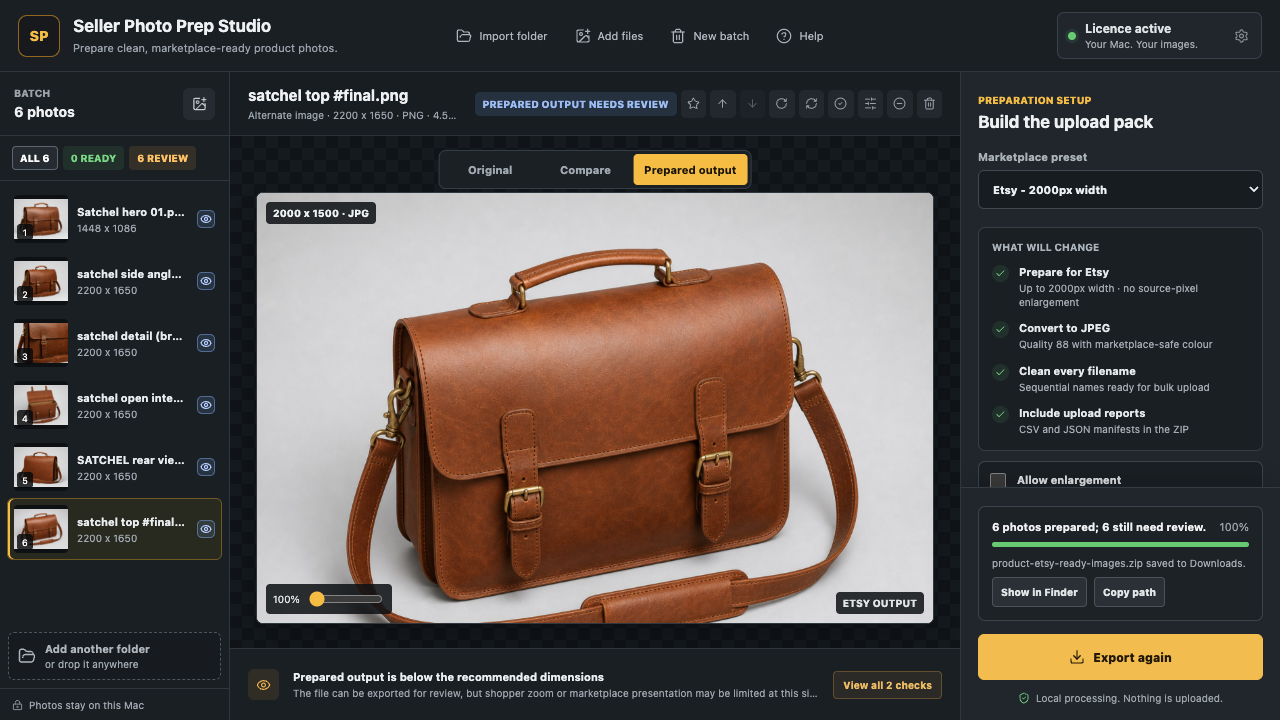
Four controlled steps
Conversion is the middle of the workflow.
- 01Preserve the source
Keep the full-resolution original as the recoverable input.
- 02Choose the target
Use marketplace guidance, photography type, and transparency need.
- 03Prepare the batch
Resize, encode, and name a separate output set consistently.
- 04Inspect before upload
Review colour, dimensions, edges, file size, and actual prepared pixels.
Straight answers
Before you convert the camera roll.
Should every HEIC product photo be converted to JPEG?
No. JPEG is a practical broadly compatible output for ordinary photography, but the target marketplace and transparency needs should decide.
When should a product photo use PNG?
Use PNG when intentional transparency or flat graphics must be retained and the target accepts it.
Does format conversion improve a blurry source?
No. Conversion cannot recreate missing focus, resolution, or source detail.
Prepare, inspect, export
Convert the batch without surrendering the originals.
Run the free local check first. Use Seller Photo Prep for repeatable folder conversion, naming, review, and export.